You can’t turn off AI Mode in Google Search. Google has no setting for it in Search, Chrome or the Google app, as of November 11, 2026. But you can hide most of its buttons. In Chrome on a computer, right-click the address bar and uncheck Always show AI Mode. On a Pixel phone, turn it off in the Google app under Customize Pixel Search Box.
To search with no AI answers at all, use the Web filter or add udm=14 to the search address. In our test on November 11, 2026, that removed every AI Overview. The AI Mode tab stayed, though.
The chart below sums up every method by device. The sections after it give the steps.
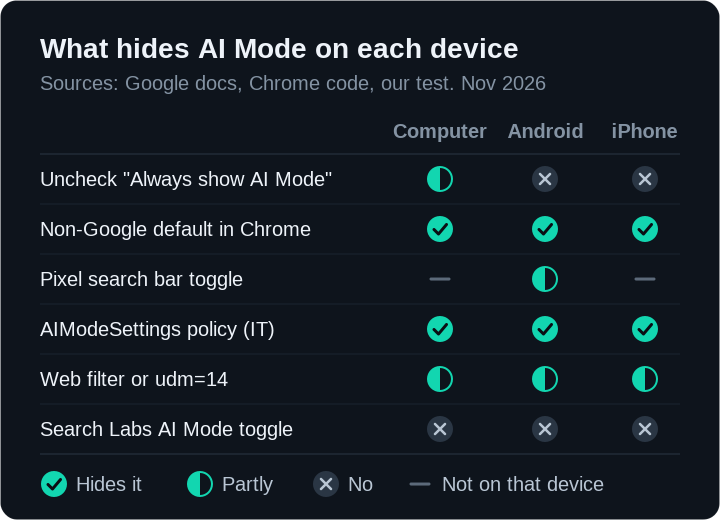
Can you turn off AI Mode in Google?
No. Google’s AI Mode help page explains how to open AI Mode, but it gives no way to switch it off. AI Overviews are the same: Google says they are a core feature you can’t turn off. Our guide on how to turn off AI Overviews covers those.
AI Mode itself still waits for you to pick it. In June 2026, a test build of Chrome sent address bar searches straight into AI Mode. Google’s Rajan Patel called that an error and said Google is not planning to make AI Mode Chrome’s default search (Search Engine Roundtable, June 8, 2026).
What keeps growing is the number of doors into it. Since May 2026, you can ask a follow-up question inside an AI Overview, and that moves you into AI Mode (Google, May 19, 2026). AI Overviews are on most searches: 77 percent of the 494 US searches in our AI Overviews study. In August 2026, Google also began testing AI Overviews that open up by themselves, with the follow-up box ready (Search Engine Roundtable, August 28, 2026).
So the real goal is to close those doors. If you want the basics first, read what Google AI Mode is.
Where does AI Mode show up?
The sketch below marks the five places we found in Google’s help pages and in our test.
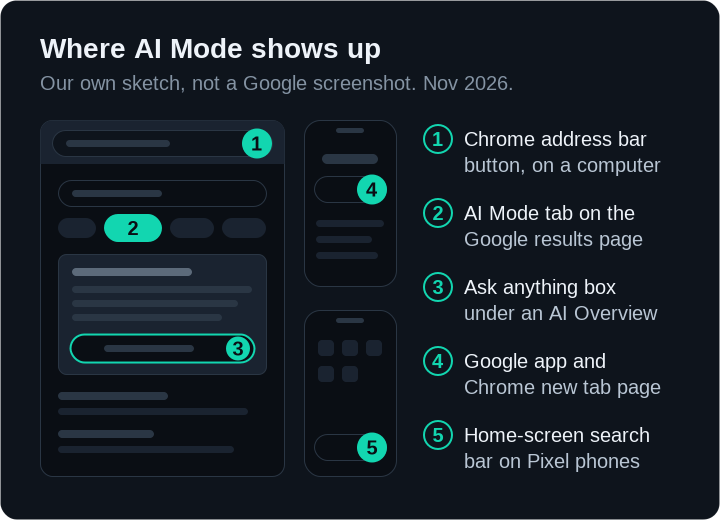
| # | Where | Can you hide it? |
|---|---|---|
| 1 | AI Mode button in Chrome’s address bar (computer) | Yes, with a right-click |
| 2 | AI Mode tab on Google’s results page | No, in any browser |
| 3 | Follow-up box under an AI Overview | No, but the Web filter drops the AI Overview |
| 4 | Google app home screen and Chrome’s New Tab page | No setting for home users |
| 5 | Search bar on Pixel home screens | Yes, with a Google app setting |
There are two more ways in. Typing google.com/ai opens AI Mode directly. Chrome on Android and iPhone also lists AI Mode in a menu on the left of the address bar.
How to remove the AI Mode button from Chrome on a computer
Chrome has one built-in switch for this.
- Open Chrome on your computer.
- Right-click the address bar at the top of the window. On a Mac, you can also hold Control and click.
- Click Always show AI Mode so the check mark goes away.
Google’s Chrome help page says this hides the AI Mode button and the Add tabs and more button in the address bar. To get them back, repeat the steps.
It has limits:
- The New Tab page keeps its button. Chrome puts a separate AI Mode button next to the New Tab search box. Google lists no way for home users to hide it.
- Google’s results page keeps its tab. This setting only changes Chrome’s address bar.
- The name says “always.” One guide warns that AI Mode may still appear in the bar after you uncheck it (ChromeStory, August 2026).
Skip the old chrome://flags trick
Many older guides tell you to turn off a flag called AI Mode omnibox entrypoint on the chrome://flags page. That flag is gone. It is in the flag list of Chrome 150, and it is missing from Chrome 151 onward. That includes Chrome 157, the current version on November 11, 2026. Flags are test switches, and Google removes them without notice.
Does a udm=14 default search remove the button?
No. A Google address with udm=14 as your default search hides AI Overviews in your results. But Chrome’s code checks whether your default search engine is Google before it offers AI Mode. A secure google.com address passes that check, even with udm=14 added. So use the right-click step as well.
How to turn off AI Mode in Chrome on Android and iPhone
Chrome on phones has no hide option. Google’s Chrome help page for Android and iPhone shows AI Mode in two places. One is a menu on the left of the address bar. The other is a button under the New Tab search box. The page lists no way to remove either one, as of November 11, 2026.
You have two choices.
Pick a search engine other than Google. Chrome only offers AI Mode when Google is your default search engine. Chrome’s own policy notes say so. To switch, per Google’s steps:
- Open Chrome and tap the three-dot More button.
- Tap Settings, then Search engine.
- Pick another engine, such as Bing or DuckDuckGo.
The cost is clear: searches from the address bar stop going to Google. You can still open google.com when you want Google.
Use the Web filter after each search. Tap Web in the row under the search box. It takes one extra tap every time, and the AI Mode tab stays.
Chrome on phones can’t use a custom udm=14 address as its default. It only lets you pick from a list, as our AI Overviews guide explains.
How to remove AI Mode from the Google app and Pixel search bar
The Google app. Google’s help page says the app shows AI Mode on its home screen. The app’s settings pages for Android and iPhone list no AI Mode option. Tap Web after you search to get plain links.
The Pixel home screen search bar. Google added an AI Mode button to the search bar on Pixel phones in 2025. It later added a way to turn it off (Droid Life, July 16, 2025):
- Open the Google app.
- Tap your profile picture, then Settings.
- Tap Customize Pixel Search Box.
- Turn off AI Mode.
This only changes the Pixel search bar. Other Android phones use the Google Search widget, which has its own settings. We could not confirm in Google’s help pages whether that widget can drop AI Mode. Google is also reworking the Pixel search bar in Android 17, so menu names may change (Android Authority, May 7, 2026).
Search Google without AI: the Web filter and udm=14
If you want plain results, the Web filter is the best tool. Google says it shows only text links, without features like AI Overviews.
- Search for anything on Google.
- Tap or click Web in the row under the search box. On a computer, it may hide under More.
When you pick Web, Google adds udm=14 to the address. You can add &udm=14 to any search address yourself. Our list of Google search parameters explains udm and the other codes.
Our test: what udm=14 removes, and what it keeps
On November 11, 2026, we fetched six US searches on desktop and on an Android phone. We loaded each one three ways: the normal address, with &udm=14 and with &udm=50. We used DataForSEO’s SERP API, signed out, in English. Then we checked each page for an AI Overview and counted links that open AI Mode.
| Version of the page | Pages | AI Overview | AI Mode tab | Follow-up links into AI Mode |
|---|---|---|---|---|
| Normal (no udm) | 12 | 12 of 12 | 12 of 12 | On 11 of 12 pages, 3 to 9 each |
| Web filter (udm=14) | 12 | 0 of 12 | 11 of 12 | None |
| AI Mode (udm=50) | 12 tries | Did not load as a results page | n/a | n/a |
We picked six everyday searches. Four were questions, such as why is the sky blue and is coffee bad for you. One was a product search, best laptop for college students. The last was this guide’s topic, how to turn off ai mode google.
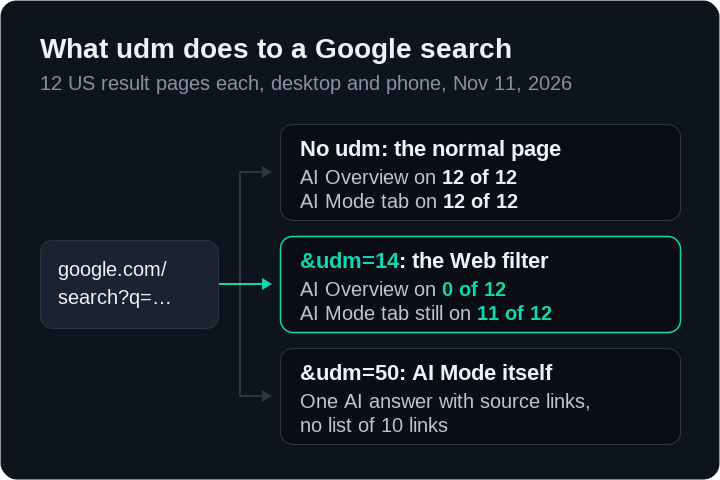
What we found:
- udm=14 removed every AI Overview. It also removed every follow-up link. Each page showed 10 plain links and nothing else.
- It did not remove AI Mode. The AI Mode tab was still on 11 of 12 Web filter pages. The one page without it was is coffee bad for you on desktop. We don’t know why, and Google tests changes on small groups of people.
- Normal pages push AI Mode hard. Besides the tab, 11 of 12 had suggested follow-up questions that open AI Mode. Two phone pages had 9 each.
- udm=50 is AI Mode itself. A comment in Chrome’s code says udm=50 starts AI Mode instead of a normal search. Our results page fetches with udm=50 failed all 12 times. DataForSEO’s separate AI Mode tool loaded the same kind of address and got one AI answer back.
Download the data (CSV). It has one row per page, 36 in all, with the failed udm=50 tries marked.
This was one day, one country and six searches, all signed out. Signed-in pages can look different. If you run a website and want to watch Google’s AI answers over time, see how to track AI Overviews.
Make the Web filter your default
Typing udm=14 every time gets old. On a computer, you can make it your default search in Chrome, Edge and Firefox. Our AI Overviews guide has the steps for each browser. Safari and Chrome on phones don’t take custom search addresses, so there you tap Web after each search.
For schools and companies: block AI Mode with a Chrome policy
IT admins can turn off AI Mode in Chrome for everyone they manage. The policy is called AIModeSettings, per Chrome’s policy file.
| Value | What it does |
|---|---|
| 0 | AI Mode allowed (the default) |
| 1 | AI Mode off in the address bar and the New Tab page search box |
It works from Chrome 138 on Windows, Mac, Linux, ChromeOS, Android and iPhone. If the policy is not set, Chrome follows a wider policy called GenAiDefaultSettings.
There are two limits. It only covers Chrome, so the AI Mode tab on google.com stays. And on a home computer, a policy makes Chrome act as a managed browser, with a note that your organization manages it.
What does not turn off AI Mode
- The Search Labs switch. Search Labs has an AI Mode toggle, but it is for people who joined Google’s test of early AI Mode features. Google’s Labs page says you are not in that test if you don’t see the Labs icon next to AI Mode. The switch controls the test, not the AI Mode everyone gets.
- The new Search services settings. Search Services History and Personalized Recommendations control what Google saves and how much it tailors answers. Google’s page does not say they hide AI Mode.
- Deleting AI Mode history. That removes past chats only.
- Signing out. Every page in our test was fetched signed out. All 12 normal pages still had the AI Mode tab.
- The old Chrome flag. It was removed in Chrome 151, as shown above.
- Extensions, with care. Some browser extensions hide AI Mode buttons after the page loads. They need permission to read and change the Google pages you visit, and they can break when Google changes its page.
Why is AI Mode not showing up?
If AI Mode vanished for you, or never showed up, one of these is the usual reason:
- Google may be testing it. In late October 2026, a searcher reported that the AI Mode button had vanished from Google’s search bar. Search Engine Roundtable covered it as a likely test, and Google had not commented (November 3, 2026).
- It hasn’t reached you. Google says AI Mode in Chrome is not yet available to everyone or on every device (Chrome Help).
- A setting hides it. You unchecked Always show AI Mode, your default search engine isn’t Google, or your school or work blocks it with a policy.
- Some features are test-only. Newer AI Mode features often start in Search Labs. Google says Labs is not open to Google Workspace accounts, including school accounts, and you must be 18 or older.
To open AI Mode on purpose, go to google.com/ai. To learn what a results page holds besides AI answers, see what a SERP is.
Frequently asked questions
Can I permanently disable AI Mode on Google?
Not inside Google. There is no account or Search setting for it as of November 2026. The closest thing is in Chrome: a school or work policy, or a search engine other than Google as your default. Both remove Chrome's own AI Mode buttons, but the AI Mode tab on google.com stays.
Does udm=14 turn off AI Mode?
Not fully. In our November 11, 2026 test, udm=14 removed the AI Overview and every follow-up link from 12 of 12 pages. But the AI Mode tab was still on 11 of 12 pages, so one click still opens it.
What is udm=50?
It is the part of a Google search address that opens AI Mode. Chrome's own code uses it for its built-in AI Mode shortcut. If you see udm=50 in the address bar, you are in AI Mode. Search again from google.com to get the normal page.
What happened to AI Mode on Google?
If the button vanished, Google may be testing a page without it. Search Engine Roundtable reported such a test on November 3, 2026. A Chrome setting, a non-Google default search engine, or a school or work policy can also hide it. You can still open it at google.com/ai.
Is AI Mode the same as Gemini?
No. AI Mode is part of Google Search and answers with links to web pages. The Gemini app is Google's separate assistant with its own settings. Both run on Gemini models, which is why the names get mixed up.
Does deleting my AI Mode history turn it off?
No. It only removes your past AI Mode chats. Google says deleted searches can stay in My Activity for up to 24 hours. If a chat started from an AI Overview, delete it from your Search history too.
Sources and further reading
- Google Search Help: Get AI-powered responses with AI Mode in Google Search support.google.com
- Google Chrome Help: Use AI Mode in Chrome (computer, Android and iPhone tabs) support.google.com
- Google Search Help: AI Mode in Search Labs support.google.com
- Google Search Help: AI Overviews in Google Search support.google.com
- Google Search Help: Get started with Search Services History and Personalized Recommendations support.google.com
- Google Search Help: Change your Google app settings support.google.com
- Google Chrome Help: Set your default search engine support.google.com
- Google Chrome Help: Chrome is managed by your organization support.google.com
- Chromium source: AIModeSettings policy definition chromium.googlesource.com
- Chromium source (Chrome 157): built-in AI Mode search shortcut using udm=50 chromium.googlesource.com
- Chromium source (Chrome 157): AI Mode needs Google as the default search engine chromium.googlesource.com
- Chromium source (Chrome 157): when a search engine counts as Google chromium.googlesource.com
- Chromium source (Chrome 150): flag list with the AI Mode omnibox entrypoint flag chromium.googlesource.com
- Google Blog: Search updates from I/O 2026 (May 19, 2026) blog.google
- Search Engine Roundtable: Google Chrome won't make AI Mode the default search experience (June 8, 2026) seroundtable.com
- Search Engine Roundtable: Google AI Overviews pushing searchers into AI Mode (August 28, 2026) seroundtable.com
- Search Engine Roundtable: Google tests removing AI Mode button from search bar (November 3, 2026) seroundtable.com
- Droid Life: Pixel phones can turn off the AI Mode search shortcut (July 16, 2025) droid-life.com
- Android Authority: Google may let Pixel owners hide the home screen search bar (May 7, 2026) androidauthority.com
- ChromeStory: How to turn off AI Mode in Chrome's address bar (August 3, 2026) chromestory.com